Last updated on: June 23, 2026
Profiles
ICE profiles allows users to edit information on their chapter profile as well as information for their chapter members.
Creating profiles
Do the following to create a new profile:
- Go to Profiles > Actions > Create.
- Enter a Name for the profile and Description.
Editing profiles
Do the following to edit a profile:
- Go to Profiles > Actions > Edit.
- Select the profile name from the dropdown list.
- Edit the following:
- Edit Properties - Select edit properties to update the description and/or mark the profile as active or inactive.
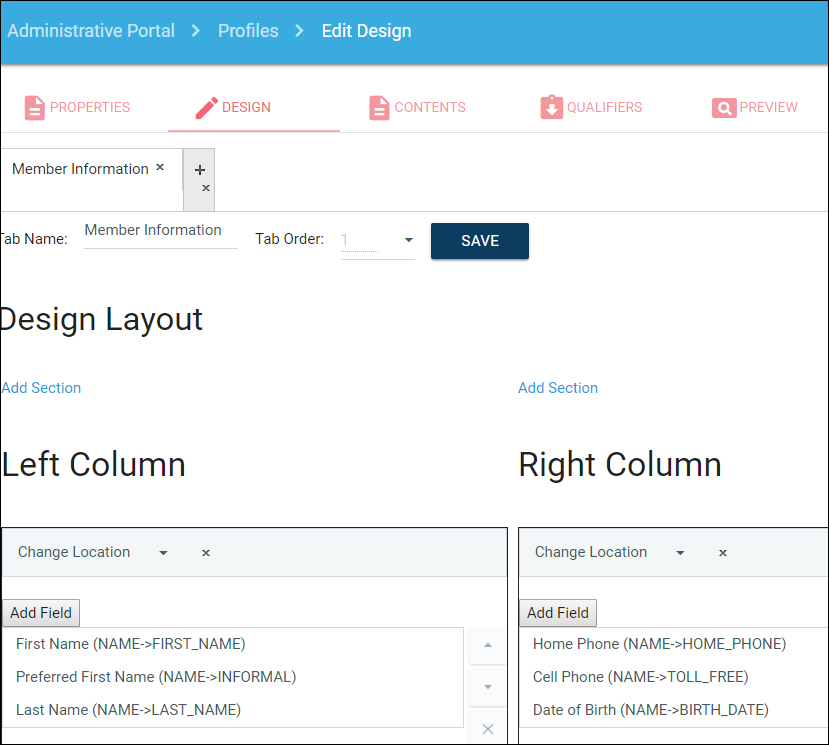
- Edit Design - Select Edit Design to:
- Add tabs
- Name/rename tabs
- Order tabs
- Add fields to each tab
- Design the layout of each tab
- Add Section - Selecting Add Section creates a section on the left or the right side and will allow you to insert fields into each section. As seen below, a modal screen with a drop down list of tables and fields will prompt you what to enter.
Adding fields
Do the following to add a field:
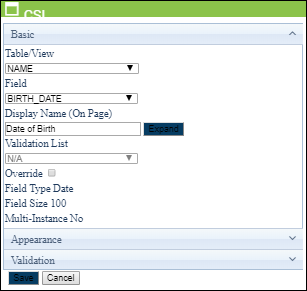
- Select Add Field within the applicable section.
- Table/View: select a the table where the field resides in iMIS
- Field: select the field to be added
- Display Name: field label that will be seen by user
- Validation List: allows the Field selected to be a dropdown list of values.
- Validation List Override: will allow the user to select an additional list of values to validate the field.
- Field Type: data type of field
- Field Size: size of data type of field
- Appearance: settings for required field and read only
- Validation: option to set date range
- Do the following:
- Move fields around within their section by using the navigation buttons to the right of each field.
- Remove a field by clicking on the "X" button to the right of each field.
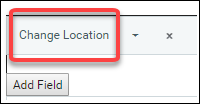
- To move a section within a tab, select Change Location within each section.
Editing Content Blocks
For each Profile, you can create content blocks with instructional information for the user.
Note: Content blocks can also be added on the Edit Design tab by adding a field and selecting the CONTENT_BLOCK table/view.
Editing Qualifiers
For each Profile, you should specify a qualifier for which the profile is applicable to. For example, if you are creating a profile that will show data for those with the member type of "AC", click Add a New Qualifier.
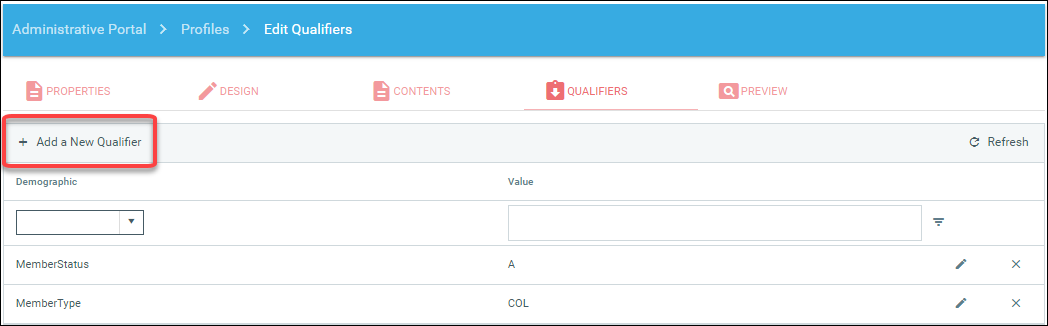
Select "NAME.MEMBER_TYPE" in the Demographic dropdown, then enter the value of "AC" for the member type. Click Insert to save.

Qualifiers work as "AND" relationships for demographics that are different. If the demographic is the same, it will treat the qualifier as an "OR" relationship. Based on the user or chapter type selected to edit the profile, the qualifiers determine "which" profile to show for editing. For example, you may have a different profile setup for new members versus active collegiate members or alumnae/alumni versus collegiate chapters.
Note: A demographic definition field must exist to be used as a qualifier.
Preview
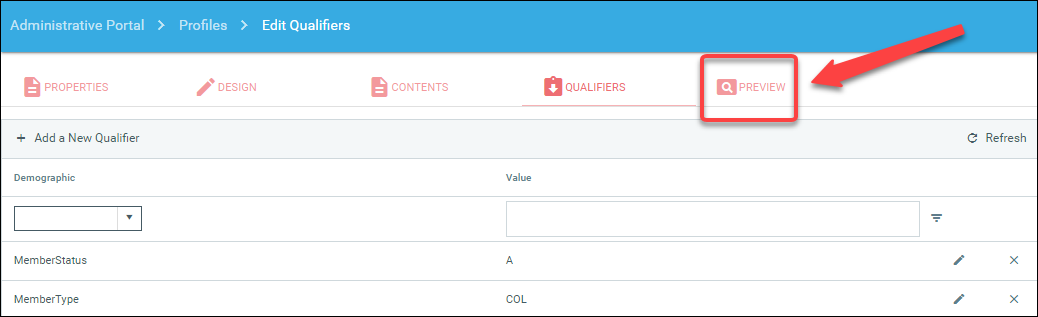
The Preview tab allows the user to view the profile as it is currently designed.
Clone Profiles
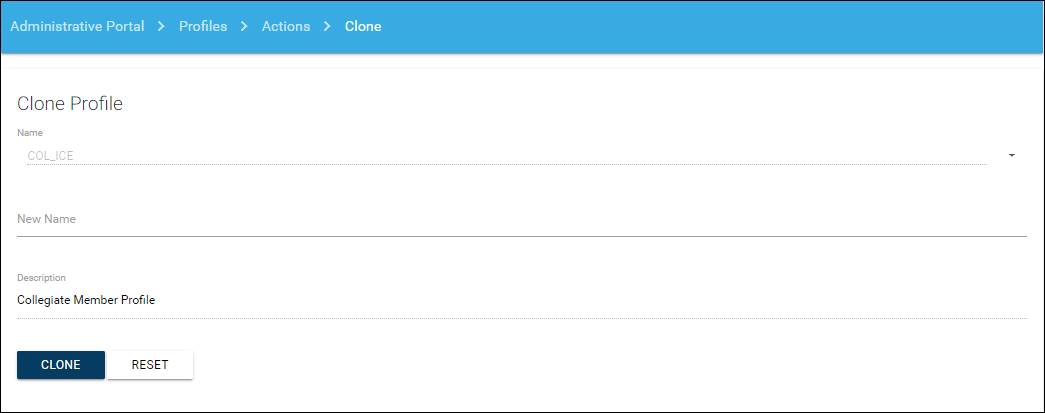
Clone Profiles allows the user to select an existing Profile name and clone it with a new profile name.
Adding to a sitemap
Do the following to add to a sitemap:
- To add a chapter profile to the sitemap for editing, select the ~/ICE/Actions/EditProfile.aspx URL option within the sitemap.
- To add a member profile edit page to the sitemap, select the ~/ICE/Actions/ManageProfiles.aspx URL option within the sitemap.
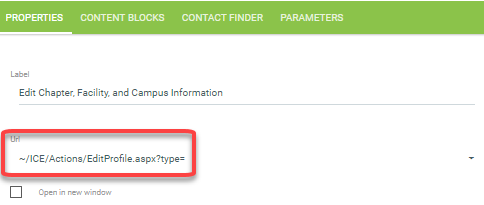
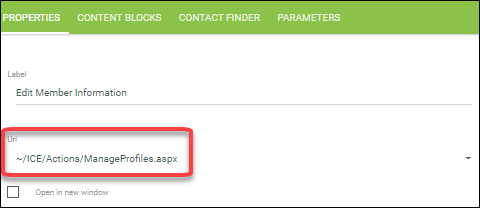
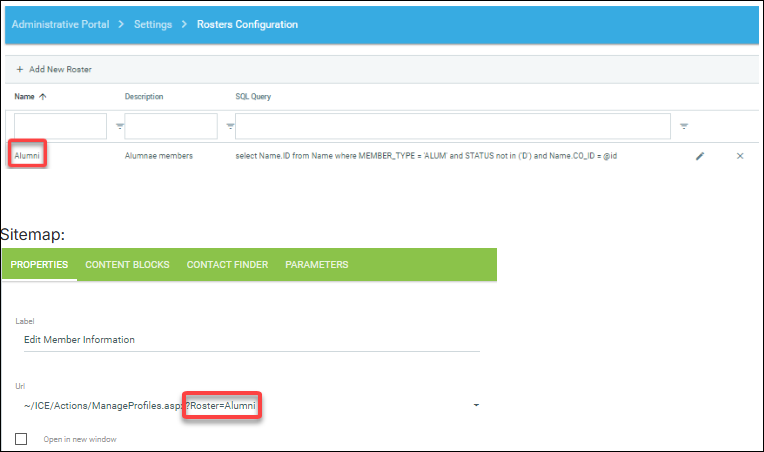
By default, the members that appear on the Edit Profile page are those members that fit under the default roster configuration in ICE (default roster query located under Settings > Membership Configuration). To use a custom roster configuration and modify the list of members shown for edit profile, you can add a parameter to the URL to include the roster configuration code (no spaces).
Example: Roster configuration: