Last updated on: June 23, 2026
Security
Security allows you to further define who has access to what in ICE. CSI recommends to set up security before configuring the Sitemap. There are four general steps in configuring security in ICE
- Create a new Security Group
- Create a new Security Permission (or Security Role)
- Associate a Security Permission to a Security Group
- Apply a Security Permission to a sitemap node
Tip: As a best practice, modify the existing security groups and permissions when possible to reduce the overall number of groups and permissions that must be managed. During initial installations, ensure that the Admin security group is set up. Do NOT delete the ICEAdmin security group.
Security Groups
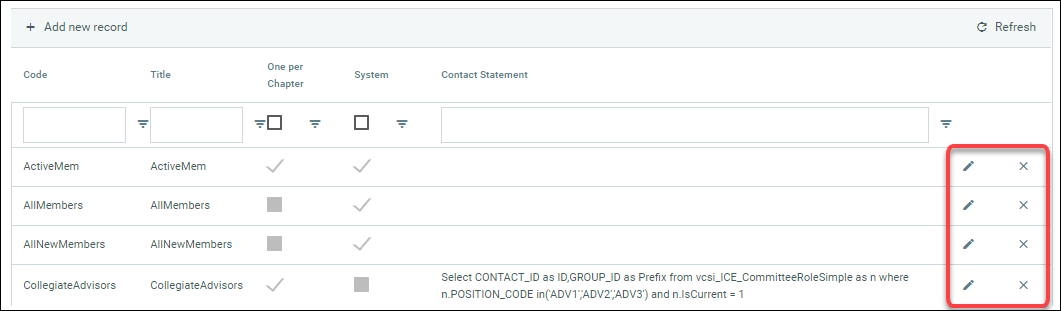
A Security Group is a defined group of users established by a custom SQL statement. The query returns the list of iMIS ID values of the members in the Security Group.
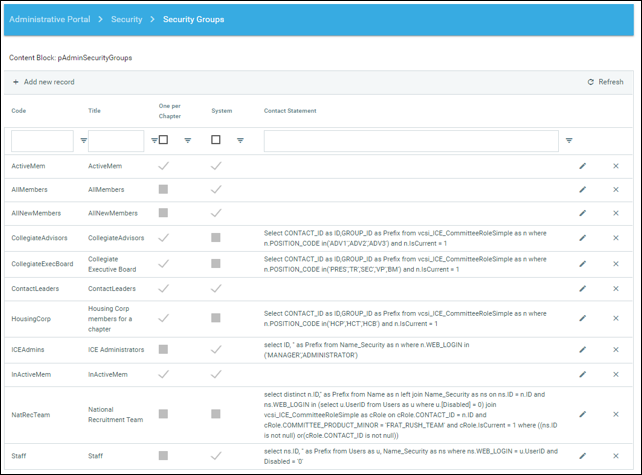
Example using Committee position code:
Creating a new Security Group
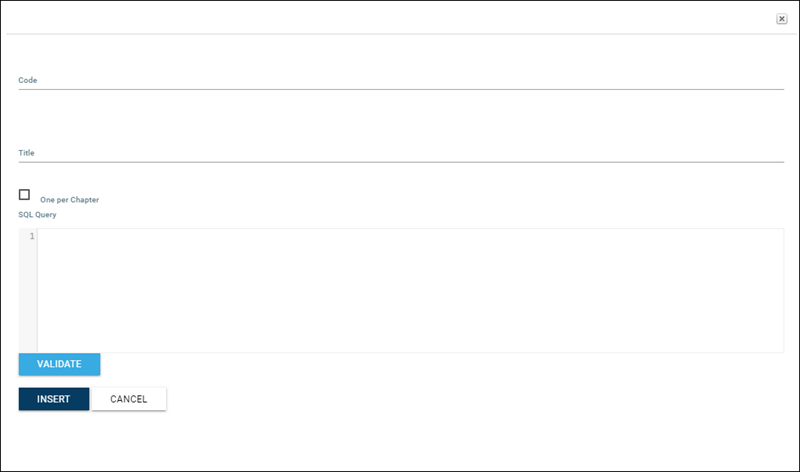
Do the following to create a new security group:
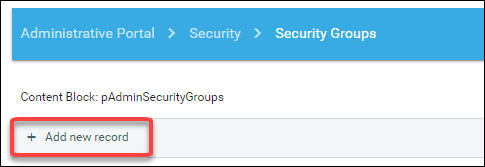
- Select Add new record on top of the main grid.
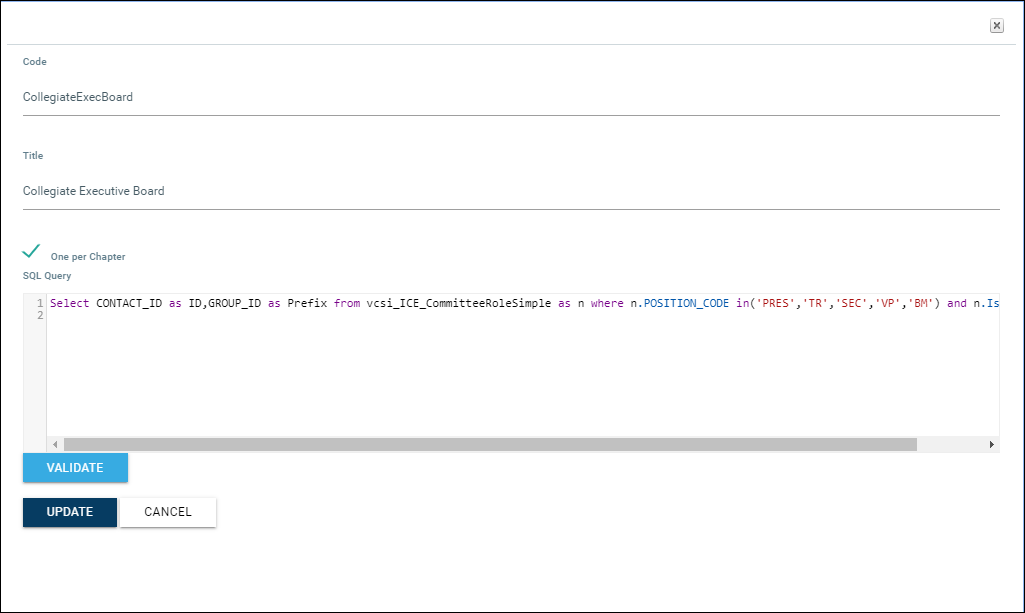
- Enter the following information:
- Enter a unique Code for the Security Group. The Code cannot contain any spaces.
- Enter a Title.
- Enable One per Chapter if the SQL query returns a company/chapter ID value along with the user/member ID.
- Add the SQL Query to the Contact Statement field which should return two rows:
- ID (the user/member ID)
- Prefix (the company/chapter ID associated with the user/member ID)
- Click Validation to confirm the query is correct.
- To edit or delete the group, use the available icons.
Example: SELECT ID, CO_ID AS Prefix FROM Name WHERE MEMBER_TYPE='MEM'SELECT ID, "" AS Prefix FROM Name WHERE MEMBER_TYPE='NON'
Security Permissions
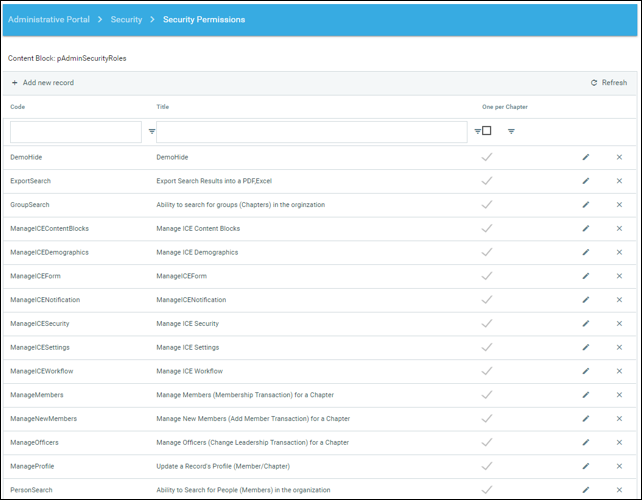
A Security Permission (or Security Role) is a permission you can apply to any sitemap node to restrict access to the specified URL. Only users having the security permission will be allowed to navigate to the URL of the sitemap node. Security permissions define what actions the groups can do in ICE. Permissions normally include Manage, View, or Submit. You can create specific permissions to an action if needed.
Special Permissions
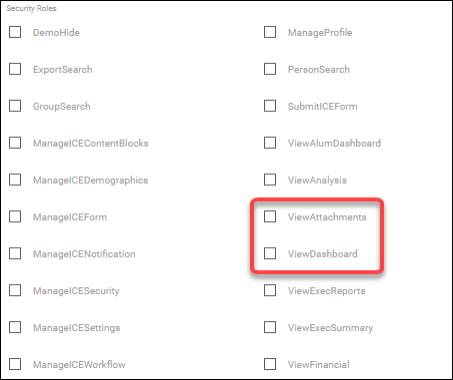
In order for a user to have access to ICE, they must have the Security permission that is applied to the "home page" of ICE, also known as the Dashboard or Task Center. Normally the permission is ViewDashboard.
If a user needs access to any uploaded documents from workflow transactions or forms, they must have the ViewAttachments permission.
Creating a new Security Permission/Role
Do the following to create a new security permission/role:
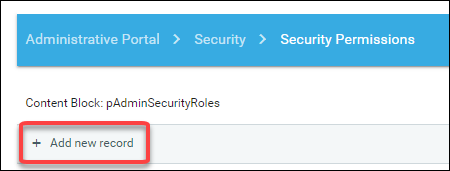
- Select Add new record.
- Enter the following information:
- Code - A unique code name for the security permission/role.
- Title - Describes the security permission.
- One per Chapter - Enable if the users from the group associated with this Security Permission will have access to only specific chapters.
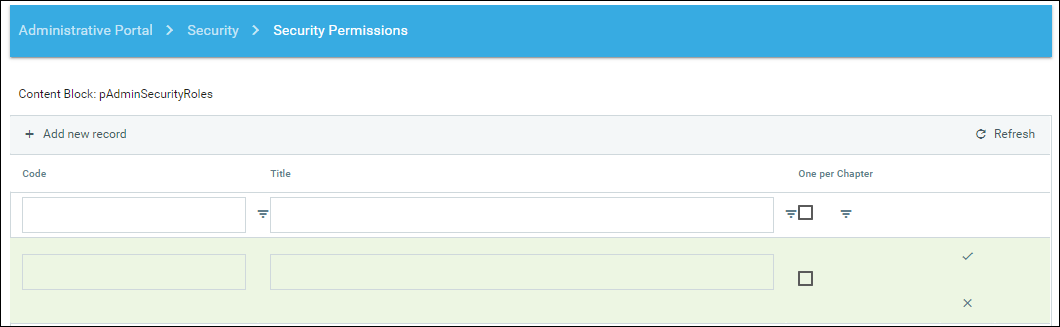
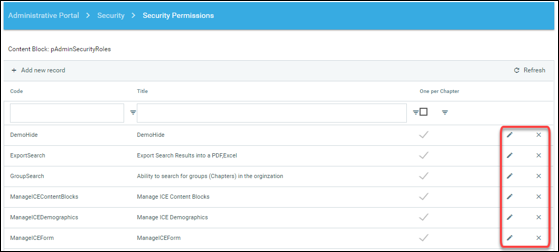
- To edit or delete the security permission/role, use the available icons.
Group's Permissions
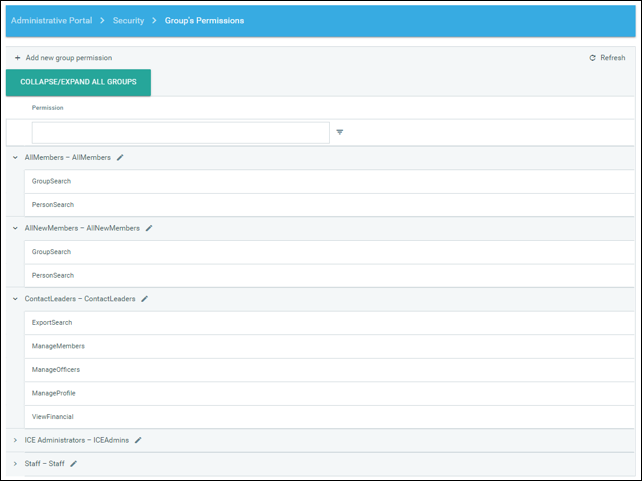
A Group Permission is the relationship that exists between a Security Permission and a Security Group. Each Security Group can have as many Security Permissions as desired.
Associating a Security Group with a Security Permission/Role
Do the following to associate a security group with a security permission/role:
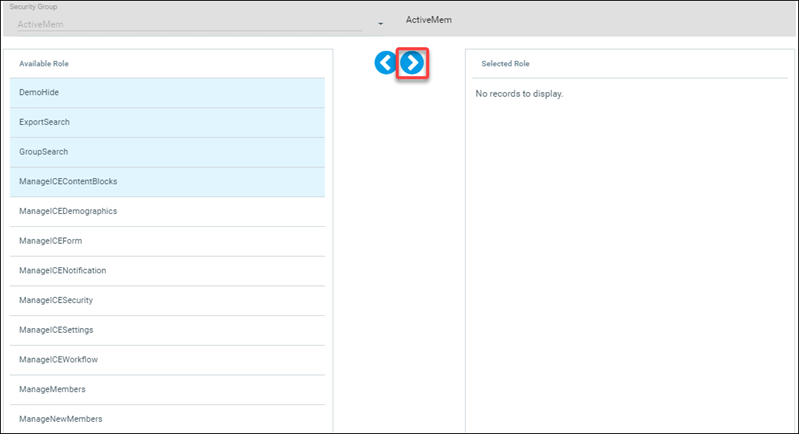
- Click Add new group permission.
- Select the group you would like to add a permission for or edit permissions. Use Ctrl or Shift to select multiple permissions at once.
- Select the right arrow to add the permissions for the group.
- Select the left arrow to remove a permission from a group.

Applying Security Permissions
Do the following to configure the Security Permission for each sitemap node so users can access each page:
- Go to Sitemaps > Actions > Edit.
- Click on the Sitemap Node on the left side that you want to set permissions for.
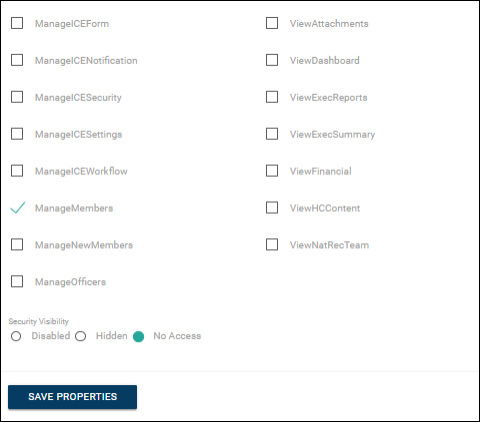
- On the Properties tab on the right side, check the applicable security permission for the sitemap node to restrict access to only users with the permission. If multiple permissions are selected, the user will only be required to have one permission to access the menu item. Select the security visibility option as desired:
- Disabled: If the user does not have the selected permission, the sitemap node will be inactive.
- Hidden: If the user does not have the selected permission, the sitemap node will not appear.
- No Access: If the user does not have the selected permission, the sitemap node will forward the user to the "No Access" page.
- Click Save Properties to validate the changes.
User's permissions
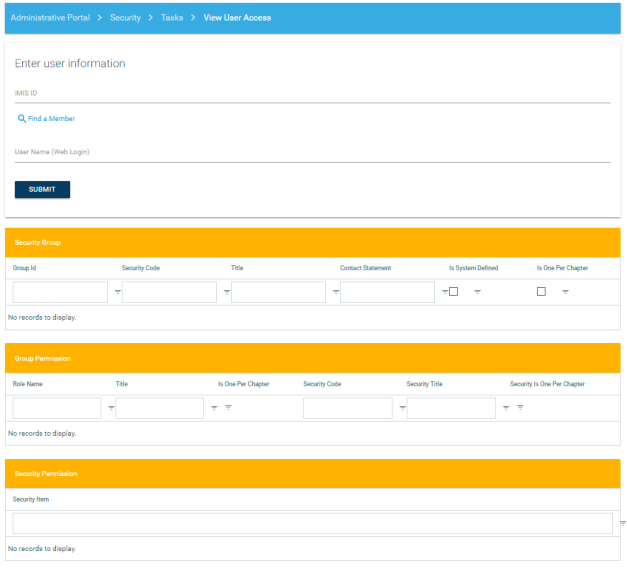
To identify an ICE user's access level, do the following:
- Go to Security > Tasks > View User Access.
- Enter the username or iMIS ID of the user. The results displayed are:
- Security Groups the user belongs to
- Group Permissions associated with each Security Group the user belongs to
- An itemized list of Security Items that corresponds to the association between a Security Group and a Security Permission/Role
Tasks
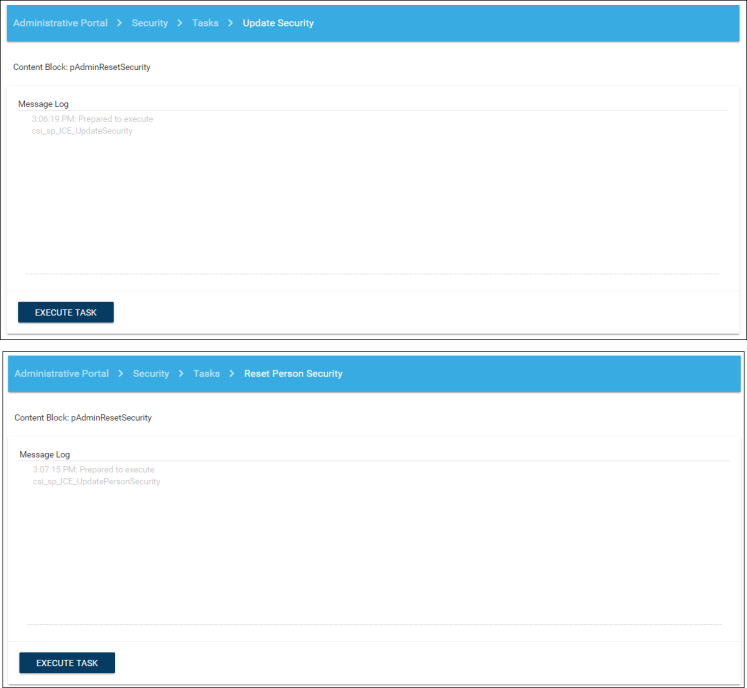
When changes are made to security groups, permissions or to the sitemap permissions, the Update Security and Reset Person Security tasks should be executed. The following scripts are involved:
- csi_sp_ICE_UpdateSecurity
- csi_sp_ICE_UpdatePersonSecurity
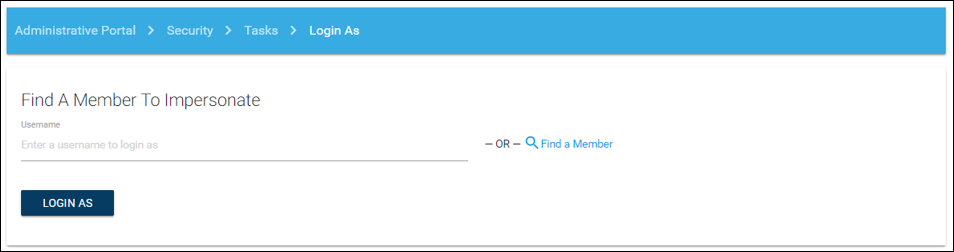
Tasks > Login As
To log into ICE as another user to confirm access, do the following:
- Go to Security > Tasks > Login As.
- Enter username or iMIS ID. You will remain logged in as this user for as long as you maintain the session in your web browser.