Last updated on: January 27, 2026
When registering someone else, users have the option to create new contacts, which may result in creating duplicate contact records. To prevent duplicate contact creation during event registrations, there are two recommended settings to enable.
In This Article
Events settings
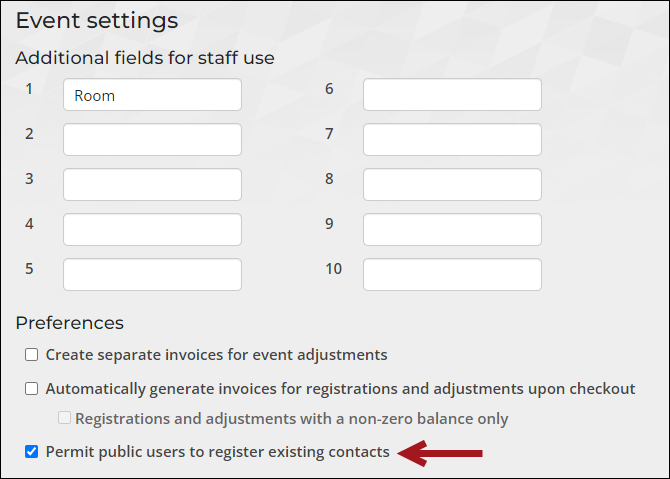
The Permit public users to register existing contacts setting allows public users to register existing contacts they do not have read access to. When the setting is disabled, public users may encounter errors if they attempt to register contacts not included in the Authenticated users security query.
To enable the Permit public users to register existing contacts setting, do the following:
- Go to Settings > Events > General.
- Enable Permit public users to register existing contacts.
- Click Save.
Event Display content item
Staff users may configure the Event Display content item to prevent users from creating new contacts altogether when registering someone else, reducing the likelihood of duplicate entries.
Note: You must be working with a copy of the event-specific console before performing the following steps. See Modifying the event-specific console for details.
To prevent the creation of new contact accounts during event registration, do the following:
- Go to Events > Find events.
- Search for and open the event.
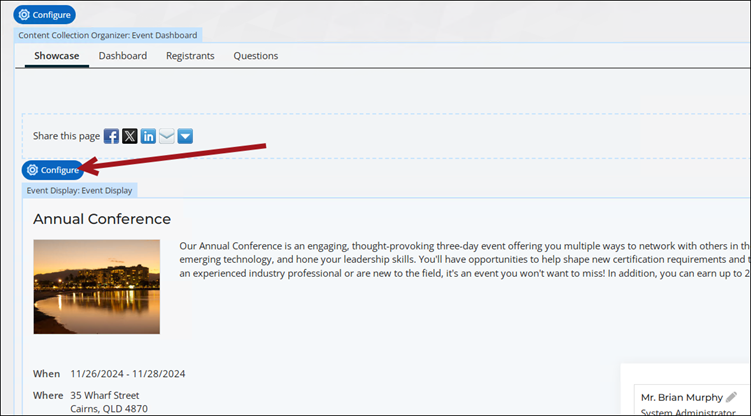
- Enable Easy edit.
- From the Event Display content item, click Configure.
- Enable Do not allow adding new contacts.
- Click Save & Publish.

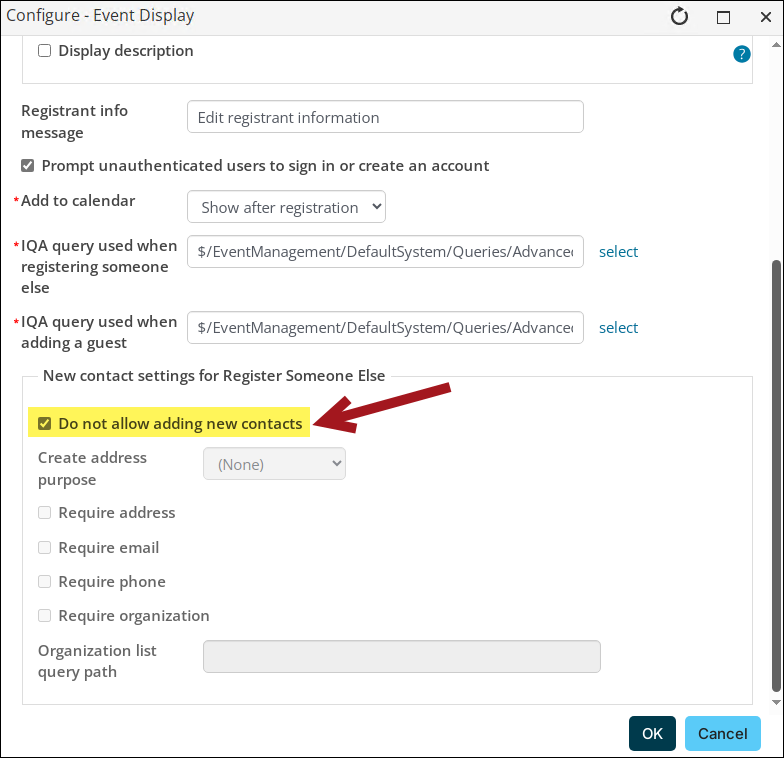
When registering someone else, users may choose from existing contacts and will not see the option to add a new contact.