Last updated on: June 30, 2026
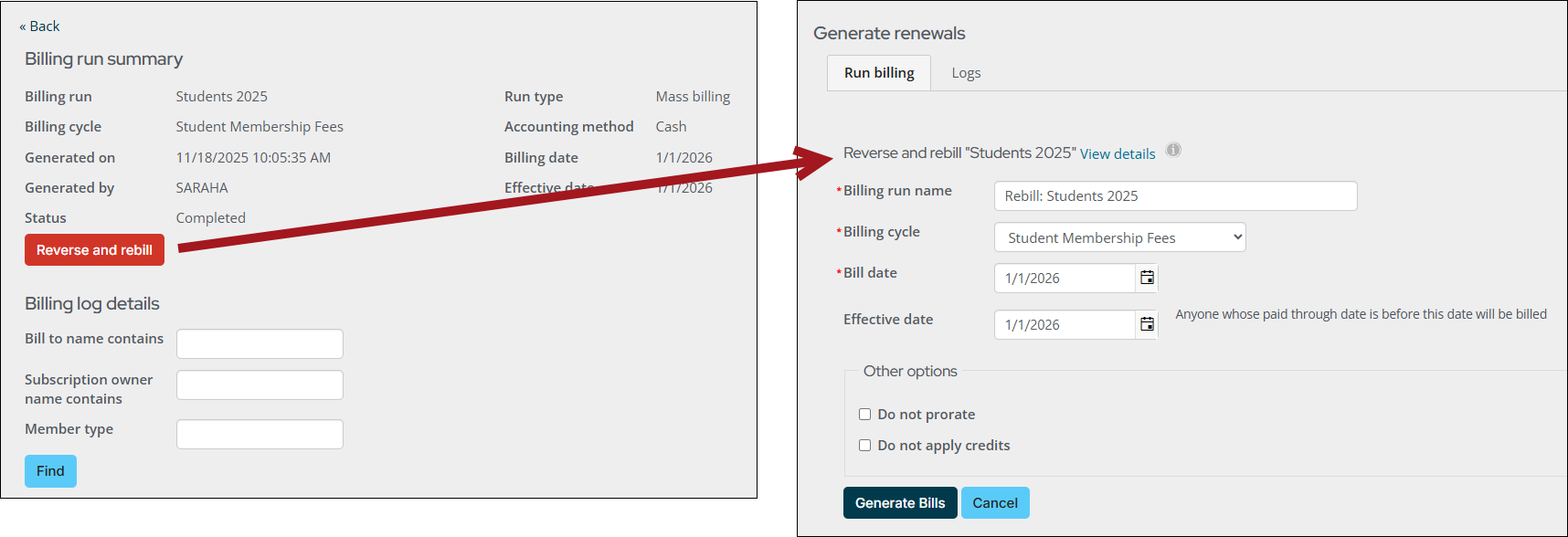
Staff users can use Reverse and rebill to correct any completed renewal batches for both persisted cash membership and accrual invoices. When selected, this option takes users directly to the Generate renewals page with the original billing details pre-populated, making it easy to adjust and regenerate the billing.
Important! Once renewals are generated through this process, any previously generated invoices that are not yet paid are automatically reversed, and a new billing is created that includes only the contacts from the original run.
Review before beginning
Correct a renewal billing for a member if one of the following is true:
- The pricing originally used for the renewal bill run was incorrect
- The original dues billing did not include a line item
In order for the Reverse and rebill button to display for Completed billing runs, the following must be true:
- The billing run was either accrual based, or persisted cash invoices were enabled.
- There is at least one invoice available to reverse. The available invoice must have a balance greater than 0.00 and no applied payments.
- The billing run was not previously reversed and rebilled.
Reversing and rebilling a billing run
Do the following to reverse and rebill a posted billing run:
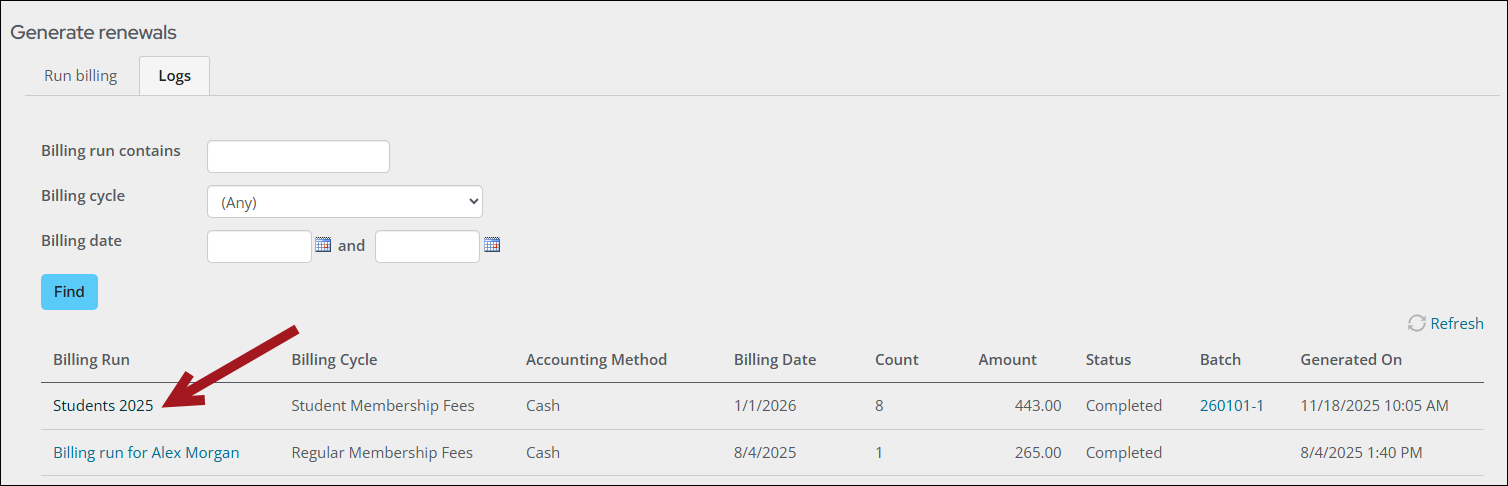
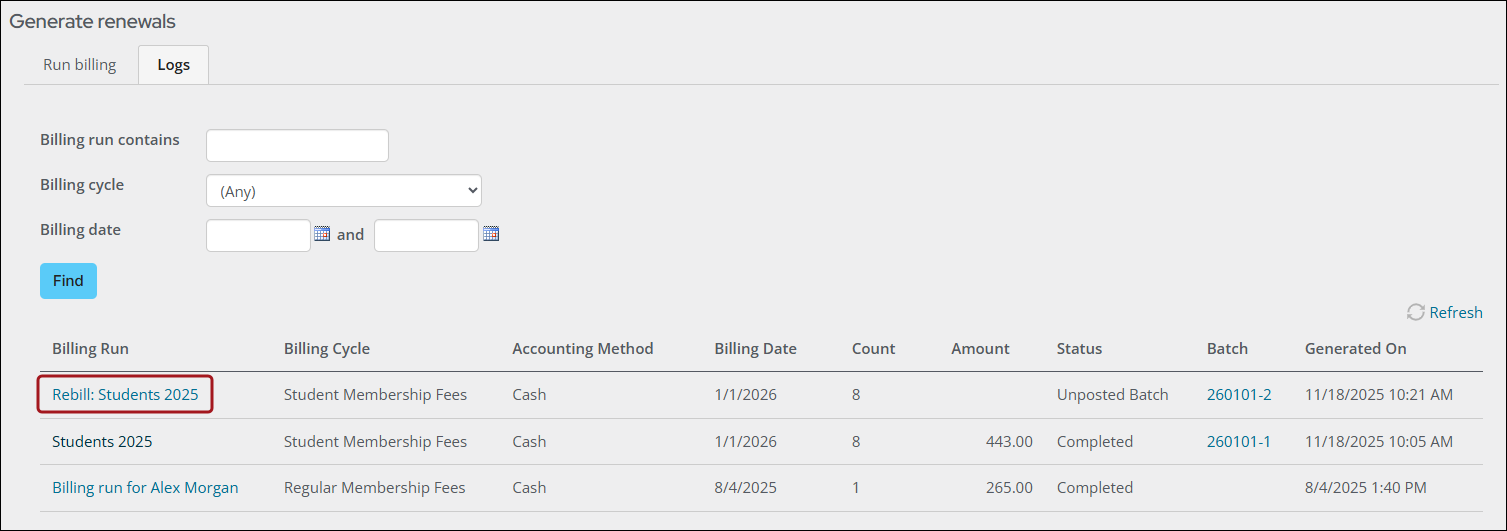
- Go to Membership > Renewals > Generate renewals > Logs tab.
- Select the Billing Run link.
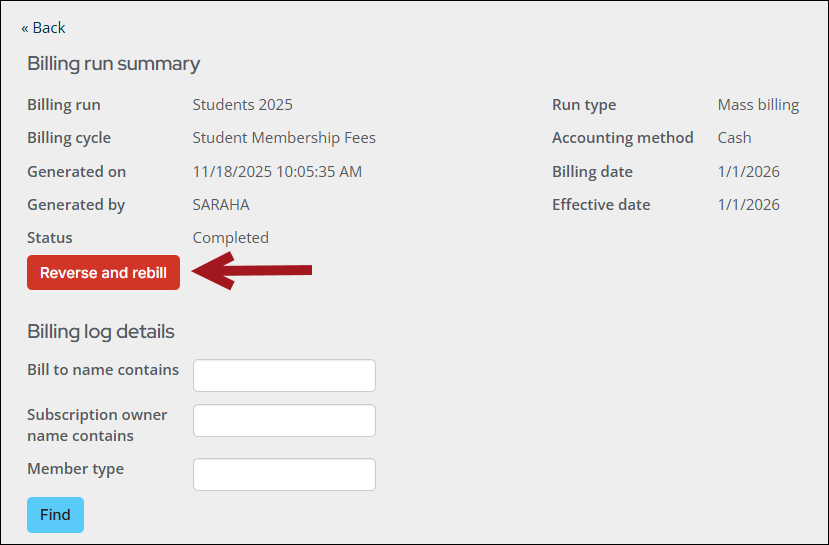
- From the Billing run summary window, click Reverse and rebill.
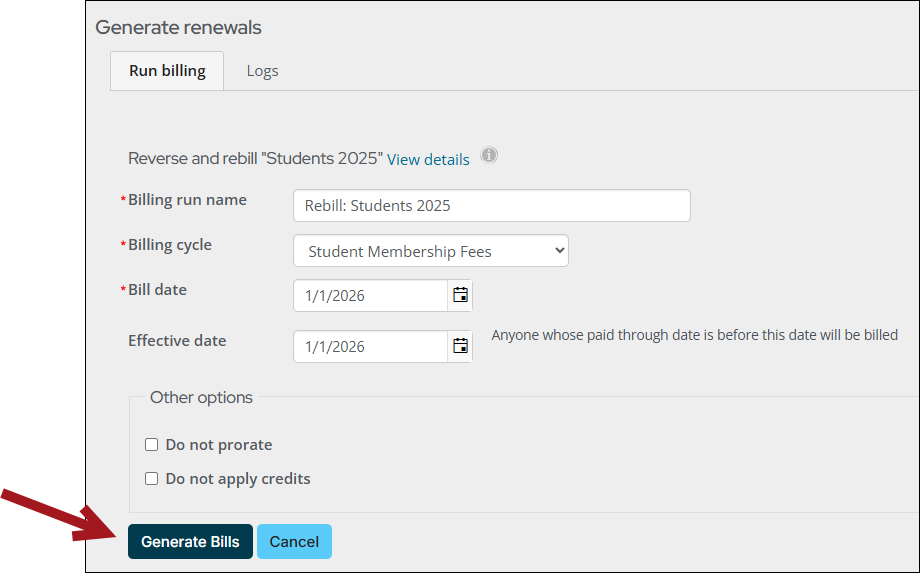
- The Generate renewals page with the original billing details displays. Make any adjustments and click Generate Bills.
- Clicking Cancel returns you to the Logs tab.
- When invoices with a complimentary primary billing item are reversed and rebilled, the open balance is reversed; however, new invoices are not generated.
- The rebilled billing run displays in the Logs tab.
- Select the Batch link from the Batch column.
- Click Post Batch.
Note: Deleting the batch for a rebill leaves the invoices reversed. To bill the members again,generate a renewal that includes those members.
Reversing and rebilling a single renewal
Staff users can correct a completed renewal for an individual contact by reversing the original invoice and then generating a new renewal for that member.
Go to the contacts account page, and do the following:
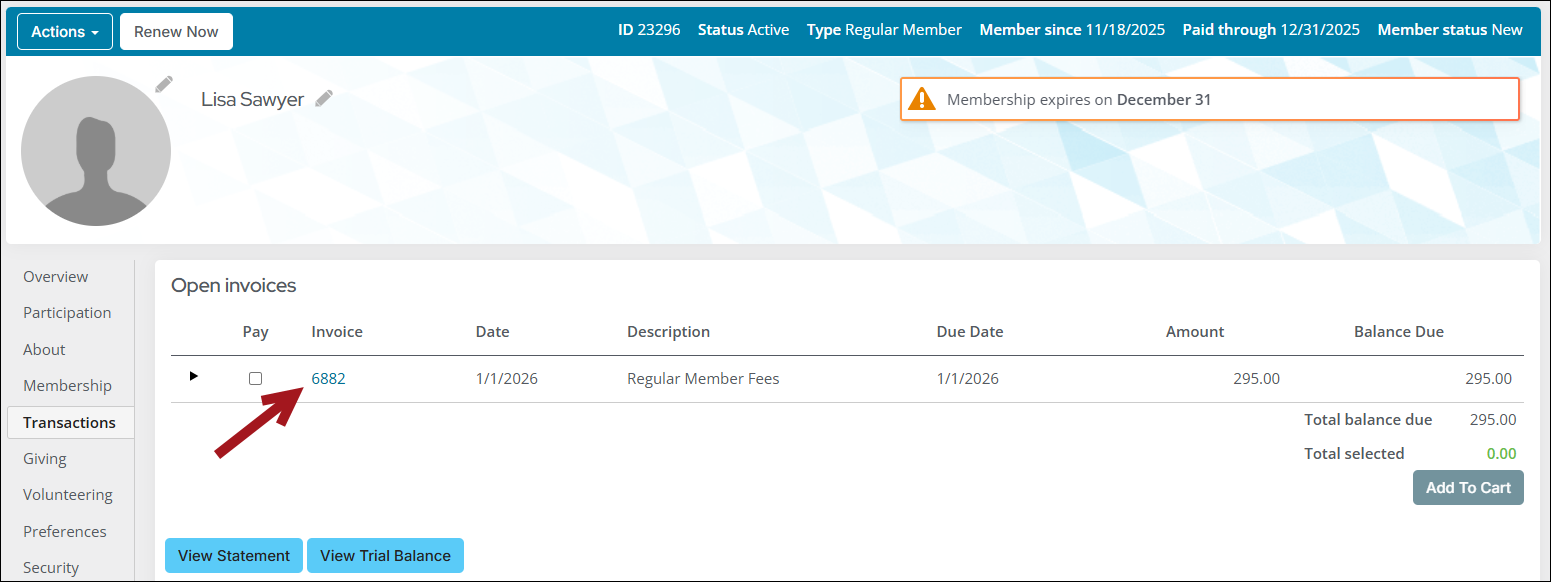
- From the Open invoices panel of the Transactions tab, select the Invoice link to open the renewal invoice.
- Click Adjust Invoice.
- Reverse the invoice.
- Go to Membership > Renewals > Generate renewals, then re-generate the renewal for the contact.
Reversing and rebilling multiple renewals with IQA queries
Staff users can correct a completed renewal for multiple contacts by reversing original invoices and generating a new renewal for a group of members using IQA queries.
Step 1: Create the queries
To reverse and rebill multiple renewals, create two queries: a query to generate renewals (Query 1) and a query to reverse renewals (Query 2).
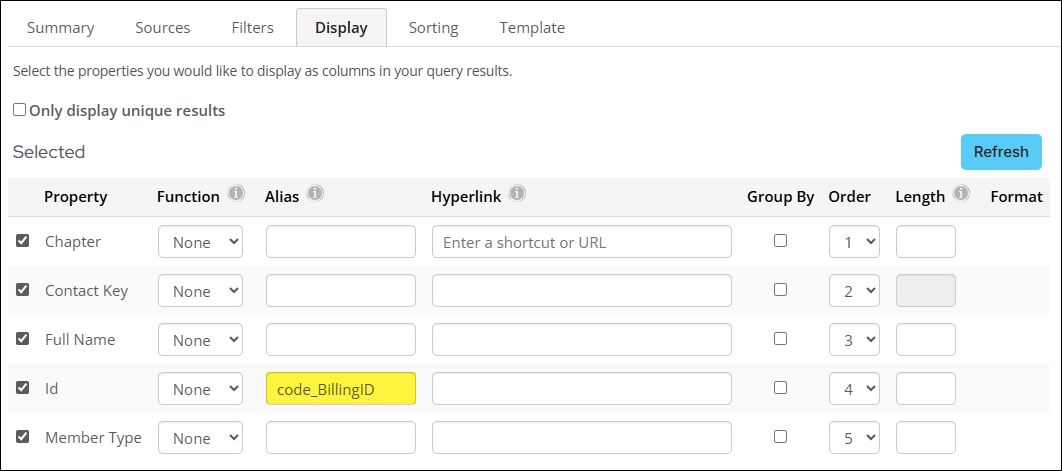
Query 1 must contain a column called iMIS Id (or an Id column with an alias of code_BillingID). The following procedure demonstrates how to create a query that finds all regular members belonging to the company Versaton US:
- Go to RiSE > Intelligent Query Architect.
- Select or create a folder for the query.
- Click New > Query.
- Enter a Name for the query.
- (Sources tab) Configure sources:
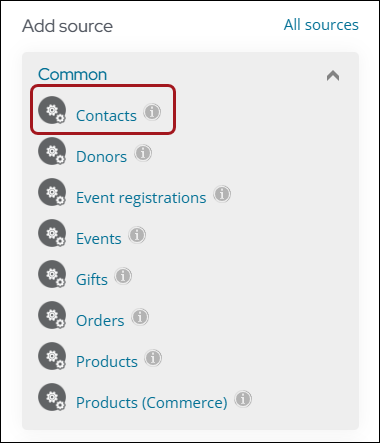
- From the Common sources, select Contacts.
- Click Save.
- From the Common sources, select Contacts.
- (Filters tab) Configure filters:
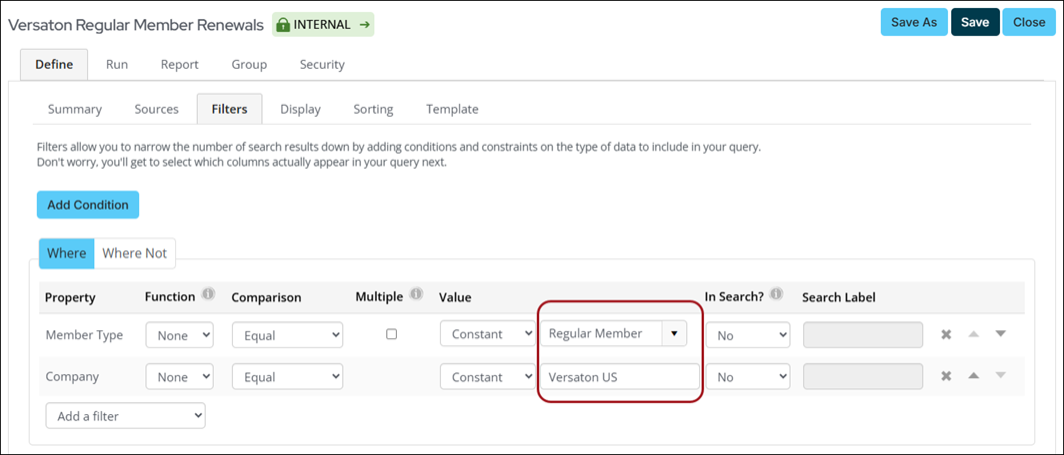
- From the Add a filter drop-down, select Company.
- In the Value field, enter Versaton US.
- From the Add a filter drop-down, select Member Type.
- From the Value drop-down, select Regular Member.
- (Display tab) In the Alias field for the Id property, enter code_BillingID.
- Click Save.
- Close the query.
Query 2 is based on the out-of-the-box OpenDuesInvoices query, which you can copy and customize to find specific invoices. The example procedure shows how to create a query to reverse open dues invoices for Versaton US regular members:
- Go to RiSE > Intelligent Query Architect.
- In the IQA Folders pane, go to Accounting > DefaultSystem > Queries > OpenDuesInvoices.
- Copy and configure the base query:
- Select OpenDuesInvoices.
- Click Organize > Copy.
- Click Organize > Paste.
- Open the query.
- Add a Name and a Description for the query.
- (Filters tab) Configure the filters:
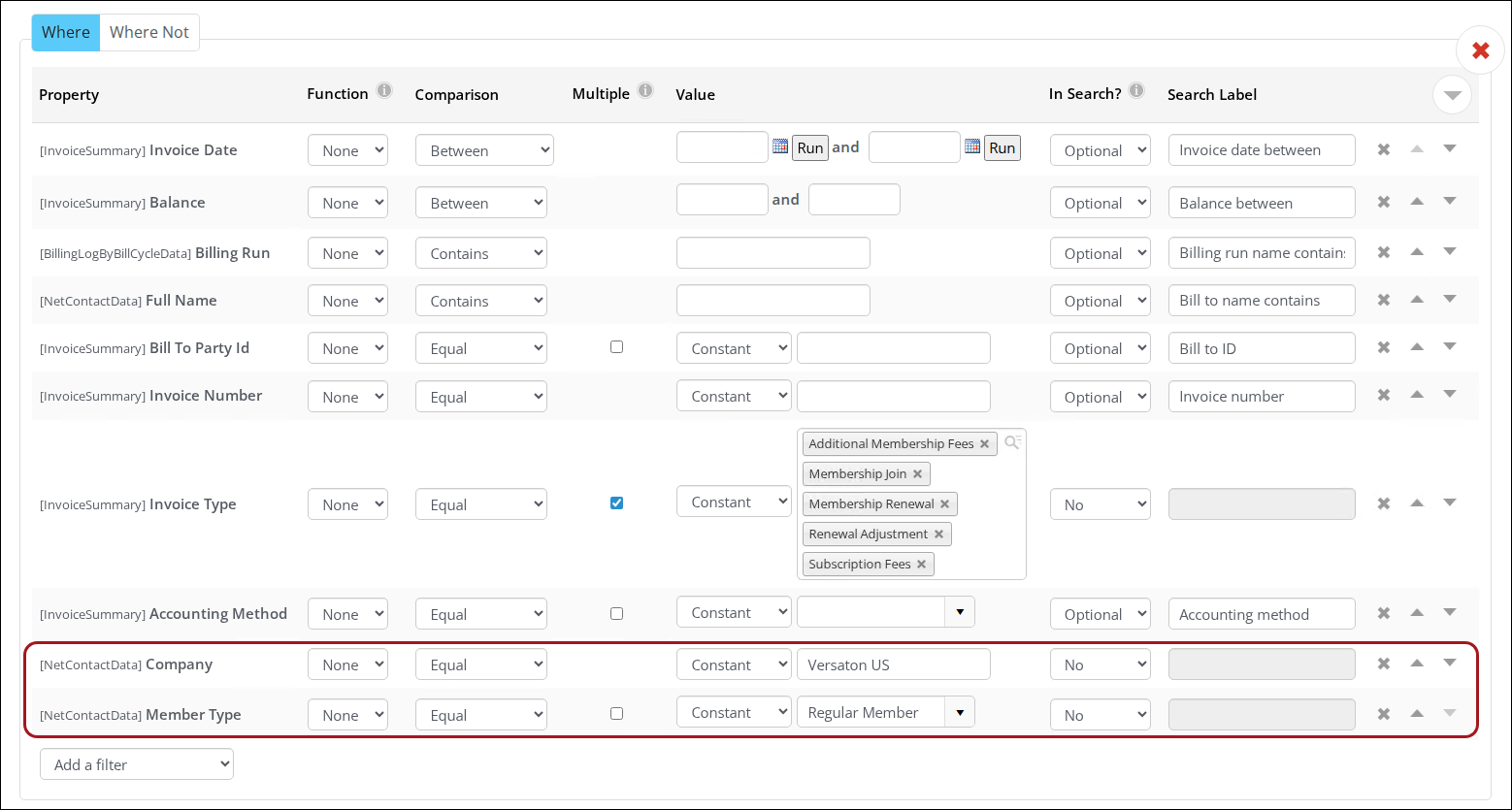
- In the Where filter category, from the Add a filter drop-down, select [NetContactData] Company.
- In the Value field, enter Versaton US.
- From the Add a filter drop-down, select [NetContactData] Member Type.
- From the Value drop-down, select Regular Member.
- Configure the [InvoiceSummary] Invoice Type filter with the desired invoice types. By default, Additional Membership Fees, Membership Join, Membership Renewal, Renewal Adjustment, and Subscription Fees are enabled.
- Click Save.
- Close the query.
Note: Query 2 must be in the OpenDuesInvoices folder, or it will not appear in the Select a query drop-down in Reverse open invoices (Membership > Renewals > Reverse open invoices).
Note: If the Description field contains text, the text displays as the query’s name in the Select a query drop-down in Reverse open invoices.
sTEP 2: bILL WITH A QUERY TO GENERATE RENEWALS
Using Query 1, create a billing run to generate renewals.
Do the following:
- Go to Membership > Renewals > Generate renewals.
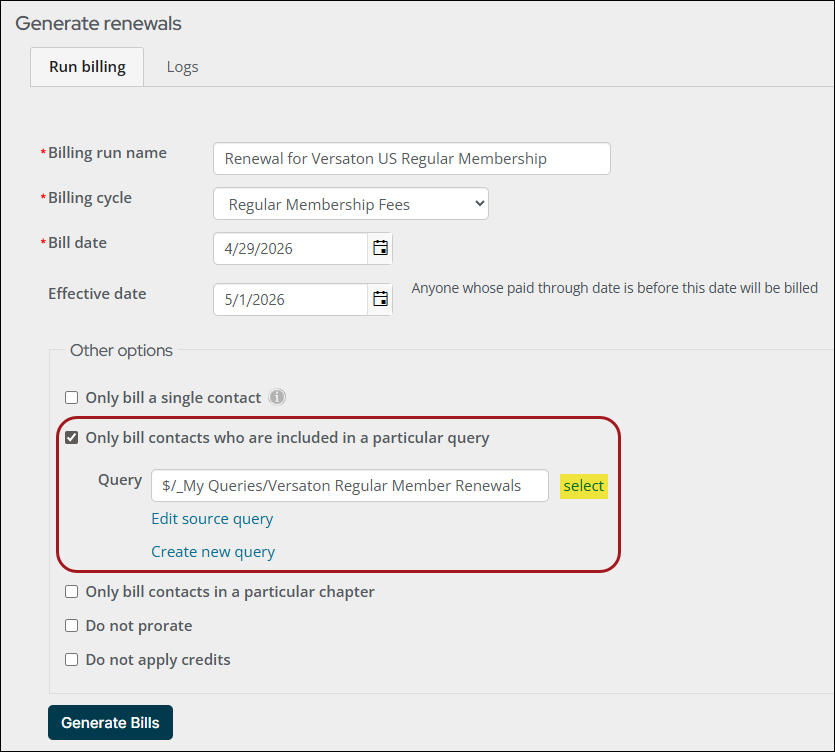
- Configure the billing run:
- Enter a Billing run name.
- Select a Billing cycle and Bill date.
- Select an Effective date.
- In the Other options area, select Only bill contacts who are included in a particular query.
- In the Query field, select Query 1.
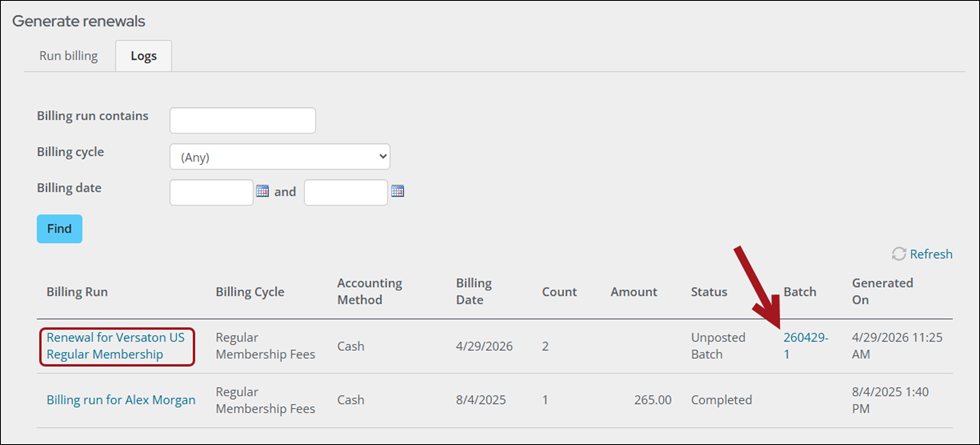
- Click Generate Bills. The rebilled billing run displays in the Logs tab.
- In the Batch column, select the Batch link.
- Click Post Batch.
Step 3: Reverse the open invoices
Using Query 2, reverse open invoices.
Do the following:
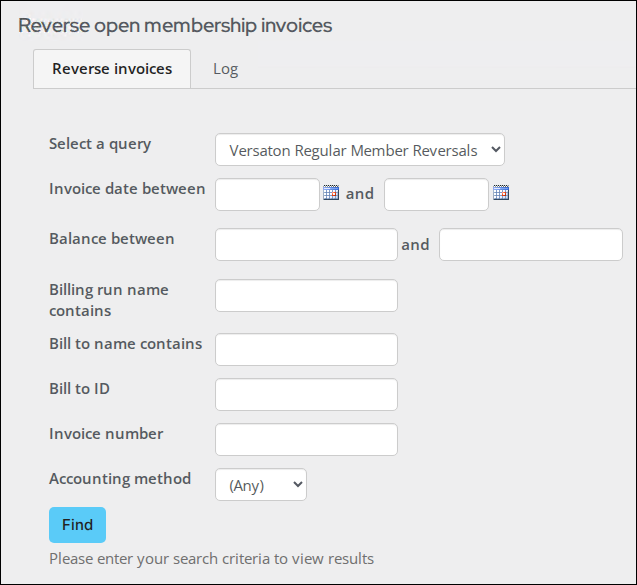
- Go to Membership > Renewals > Reverse open invoices.
- From the Select a query drop-down, select Query 2.
- Click Find and view results.
- Select the invoices to reverse.
- Click Reverse only.
- Click Reverse Invoices.
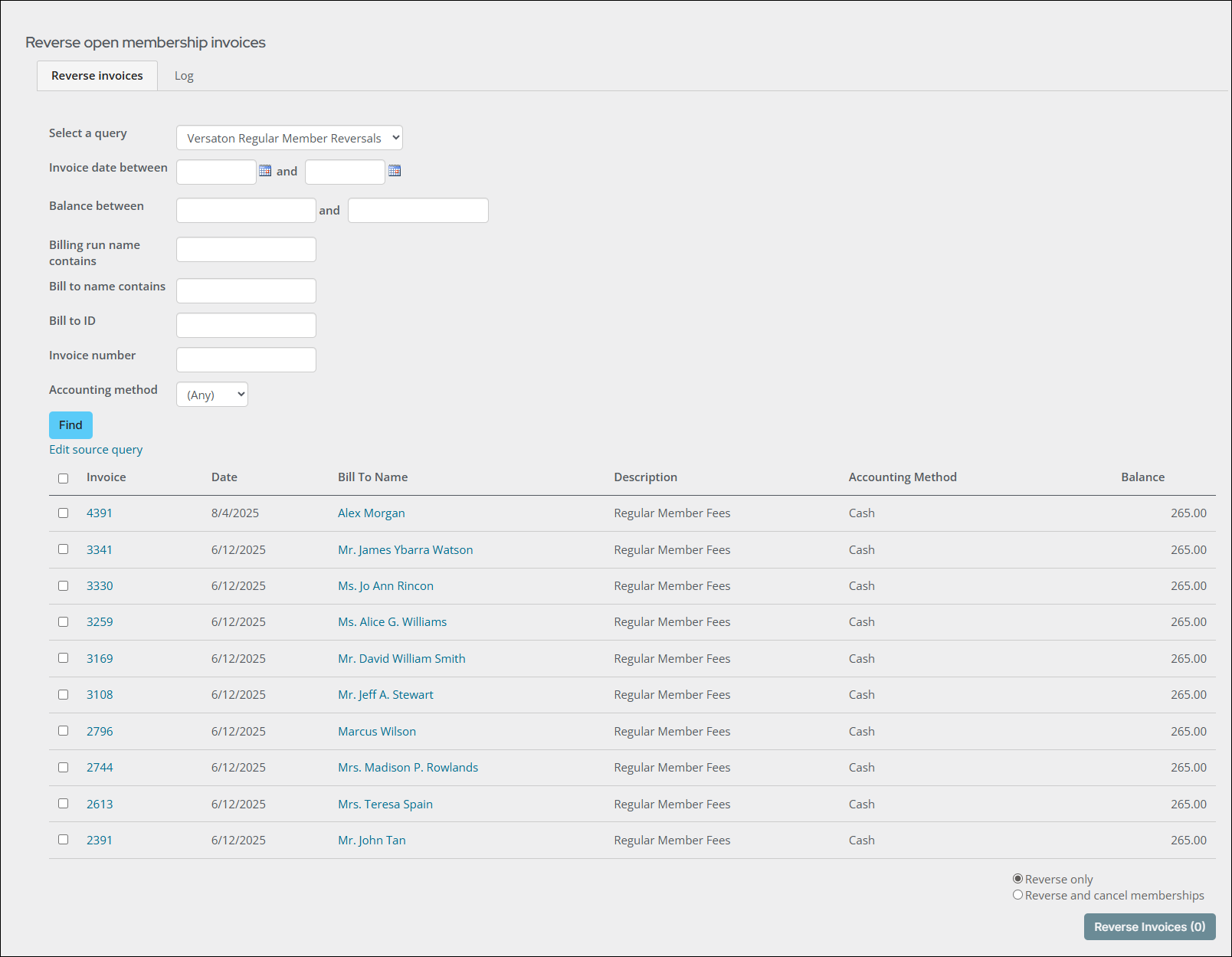
Note: Only unpaid invoices are available for reversing in the results list.
Once you have reversed invoices, generate renewals again with Query 1 (as in Step 2). Invoices that have already been paid will not be included in the results.